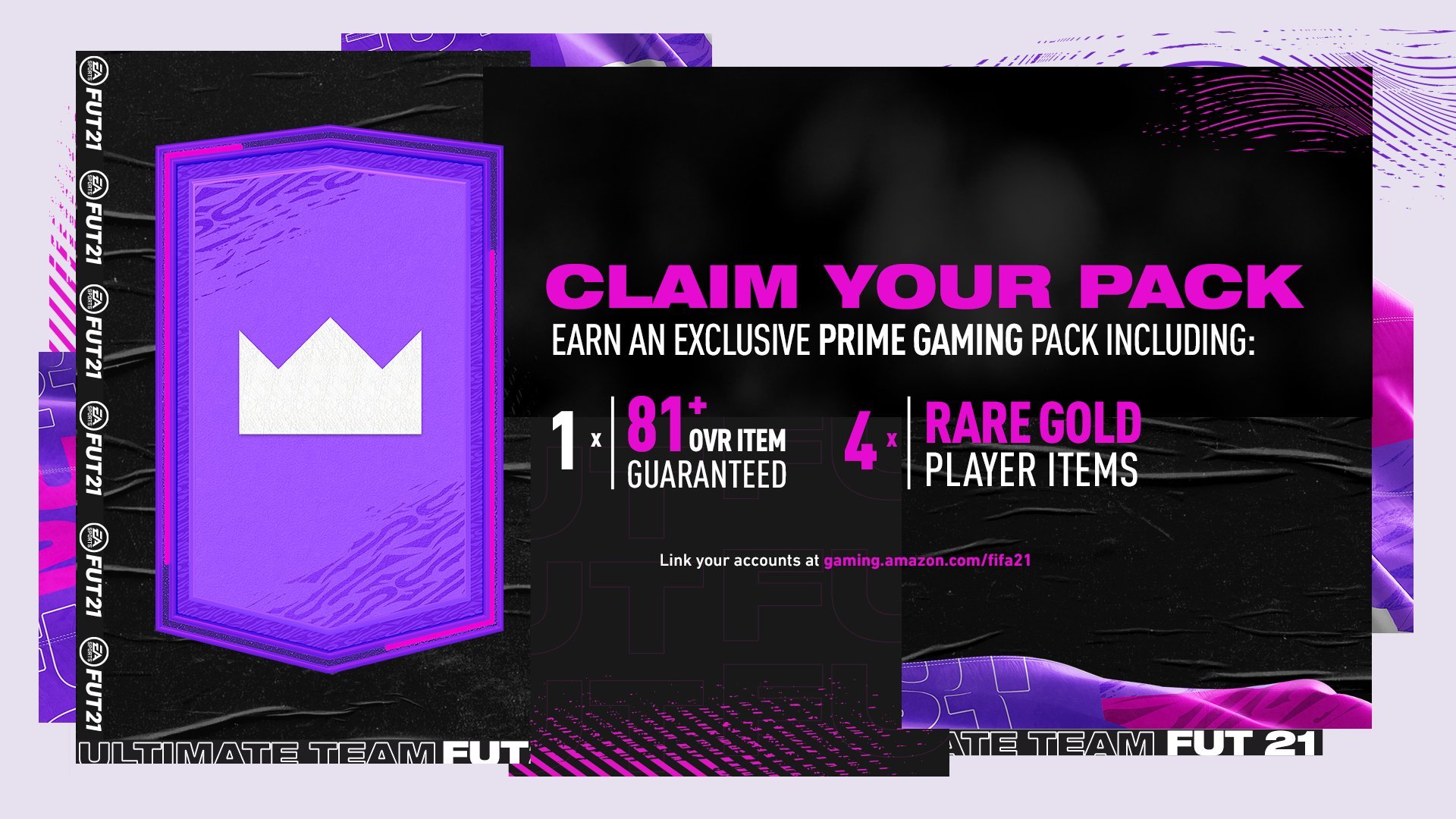
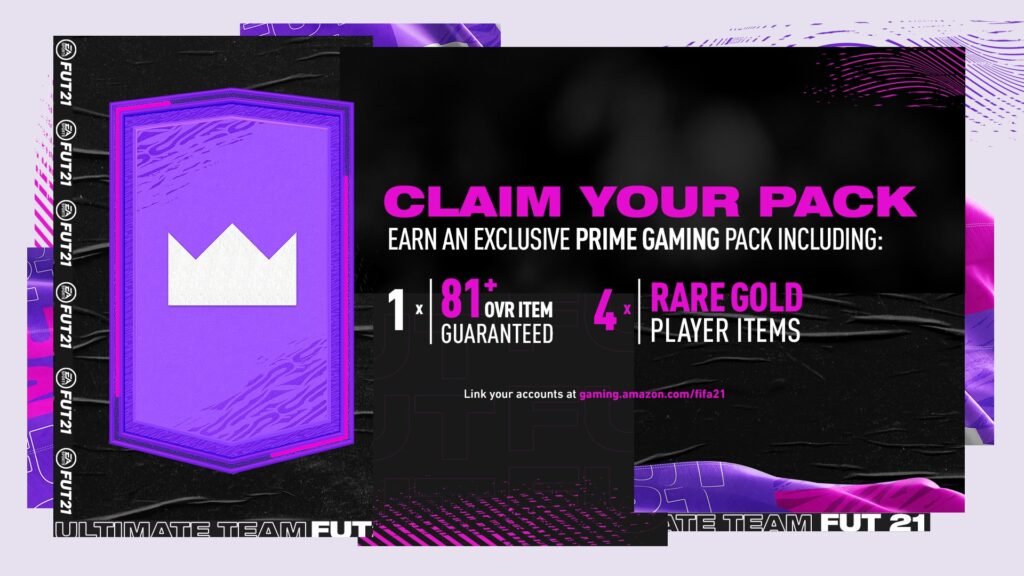
Starting today, EA Sports has begun to sort out bonus packs as gifts for all those who have linked an Amazon Prime account to a Twitch Prime Gaming account for the FIFA 21 Ultimate Team mode.
The first Rewards available is the following, while further down you will find the complete guide:
- 1x 81+ OVR Item Guaranteed
- 4x Rare Gold Player Items
Important Update 9:50 pm 25 January
EA is aware of an issue processing account link requests at this time. EA is investigating and we will provide an update as soon as we can.
What’s the difference between Twitch and Prime Gaming?
- Twitch.tv is for watching Twitch streams. For games like Madden NFL, you can get daily drops from watching certain Twitch streams.
- Prime Gaming is for Amazon Prime members. If you’re a Prime Gaming member, you can claim loot and rewards for our games.
For both of these, you’ll need to link your EA Account to Twitch and Prime Gaming. You’ll also want to make sure you have the correct console account linked to your EA Account.
You can check all your Twitch connections here.
Potrebbero Interessarti

Link your Twitch account and Prime Gaming account to EA
Step 1: Link your Twitch and Prime Gaming account
You can link your Prime Gaming account in your Twitch settings or follow these steps. If you don’t have a Twitch account to link.
- Go to the loot page on Prime Gaming.
- Click Sign in on the top right.
- Sign into your Amazon Account.
- Once logged in, click Link Twitch Account on the top left of the screen.
- An option to link your Twitter and Amazon Account will show up.
- Click Link Accounts.
- Log into your Twitch.
- Click Confirm.
Step 2: Link your Prime Gaming and EA Account
After you’ve linked your Twitch and Prime Gaming account, you can link your EA Account. Make sure to double check that any consoles you play on are also linked to this account.
- Go back to the offer page.
- Click Claim on any EA promotions available.
- A window will pop up with your Amazon Prime account information.
- Confirm the information is correct, then click Continue.
- Another window will pop up and ask you to link your Electronic Arts game account.
- Click Go to Electronic Arts.
- Sign in with your EA Account information. Make sure it’s the same account you use for all other consoles and games you play.
- You’ll be asked again if you want to link your accounts. Click Yes, link them.
- Click Claim Now. It may ask you to login to your EA Account again.
- You’ll see your reward was Successfully claimed.
You should now see the Prime Gaming reward next time you play. You may need to restart your game to see these rewards.
Already linked to Twitch? Link to an existing Amazon account
- Go to the loot page on Prime Gaming and find the game you want to get rewards for.
- A menu will pop up that says Link your Amazon account. Click Link accounts.
- A second menu will pop up that says EA would like access to your Prime membership. Click Allow.
- A window will pop up that says Successfully claimed.
You should now see the Prime Gaming reward next time you play. You may need to restart your game to see these rewards.
Unlinking your accounts
Did you link the wrong EA Account to your Prime Gaming or Twitch account? Disconnecting Electronic Arts from your Prime Gaming account in your Connection Settings won’t unlink your accounts.
Step 1: Unlink your Prime Gaming and EA Account
- Log in to your EA Account. If you’re already logged in, it will take you to the EA Help homepage.
- Click Contact Us at the top of any page on EA Help.
- Search for any of the games you get Prime Gaming rewards for.
- Pick the platform that you play on.
- Click Twitch Prime for the topic.
- Click Account link issue for the issue.
- Click Select contact option.
- Click the link that says, Click here to unlink with our tool.
If it worked you’ll get a message that says “Your EA Account and Twitch account have been unlinked.”
Step 2: Unlink your Twitch account
Once you’ve unlinked your EA Account from your Prime Gaming account, you’ll need to unlink your accounts from Twitch, too.
- Go to twitch.tv.
- Go to your Settings.
- Click Connections.
- Scroll down to Other connections.
- Click Disconnect next to Electronic Arts.
Now that you’ve unlinked your accounts from both ends, you can relink your Prime Gaming account to the right EA Account to start getting your rewards.
FIFA 21 is available on PlayStation 4, Xbox One, PC, Nintendo Switch and in December 4th for the Next Gen PlayStation 5 and Xbox Series X platforms Keep on following us also through our social Facebook and Twitter for other news and information.